Adding pages to your site
When you have all of your site setup and looking the way you would like, you can start adding pages to your site. This can be done a number of ways;
Things to note: Your pages visibility should correspond to the visibility of the site. For example, if your site is public, your page should be public or unlisted. If the page is unlisted, it will be harder for search engines to index as it won't appear in the sitemap.xml for your site. However, if you link this unlisted page from another page, it may still appear in search engines.
Via the 'My Pages' list
When you click Pages -> My Pages, you will see a list of pages. You can add the page by clicking on the To Site link
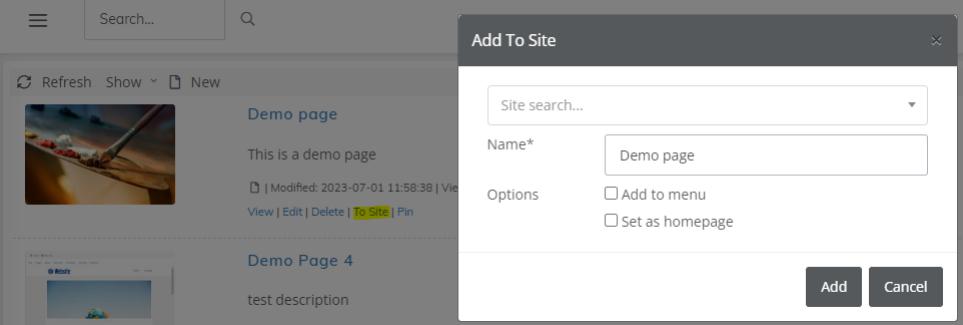
Site Search
Enter in the site name you would like the page to be added to
Name
The name of the page for the site. This will create an SEO name, for example Demo page would become www.yoursite.com/demo-page
Options
Add to menu: Select this box if you would like the page to be added to the navigation bar, you can later change this in the site's menu tab.
Set as homepage: Select this box if you would like this page to become the homepage for your site.
Via the edit page
When you are editing a page, you can click the 'To Site' button at the top of the page
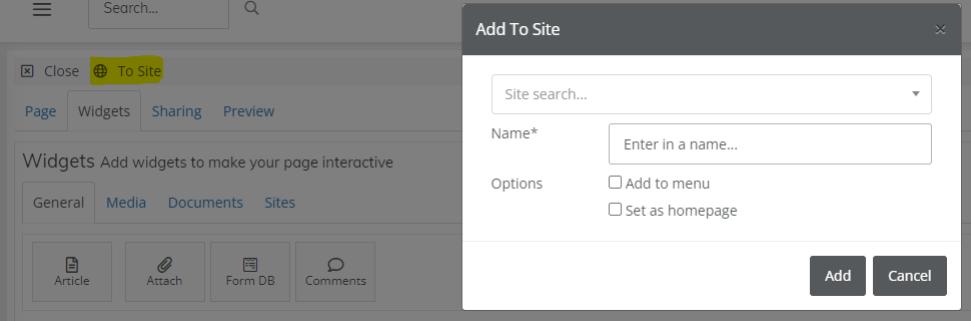
Site Search
Enter in the site name you would like the page to be added to
Name
The name of the page for the site. This will create an SEO name, for example Demo page would become www.yoursite.com/demo-page
Options
Add to menu: Select this box if you would like the page to be added to the navigation bar, you can later change this in the site's menu tab.
Set as homepage: Select this box if you would like this page to become the homepage for your site.