Here is how to install the grub boot loader on a USB. We have a problem where we can't get our NVMe M.2 showing in the BIOS, it does however show up as a disk that when we install the operating system (I.e. Centos Linux, Windows). The solution is to use a USB with the GRUB boot loader installed and boot the the NVMe
Download
Download the grub boot loader here and unzip
Setup
- On the USB drive, format as FAT32
- Inside windows, locate the drive letter of the USB drive, in this case it is D:
- Inside windows, locate the physical drive, this can be done running the following commands, in this example we get disk 1
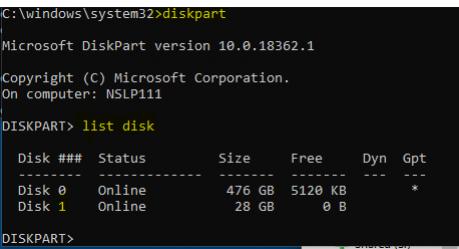
Run the following command inside a command prompt to install the boot loader for all platforms (legacy, UEFI 64 bit, UEFI 32 bit)
grub-install.exe --boot-directory=D:\ --target=i386-pc //./PHYSICALDRIVE1
grub-install.exe --boot-directory=D:\ --efi-directory=D: --removable --target=x86_64-efi
grub-install.exe --boot-directory=D:\ --efi-directory=D: --removable --target=i386-efi

You can now create menu items using a grub configuration file. This file will allow you to create menus, set boot options etc. Here is a simple menu example. Copy the following example and place into the grub directory on the USB and name it as grub.cfg (e.g. D:\grub\grub.cfg)
# Menu Example
menuentry "Power Off" {
	halt
}

menuentry "Restart" {
	reboot
}
There are a lot more grub.cfg examples on the internet, just have a bit of a Google.